Adding and editing information in your community
Updated Aug 23, 2024
If you are a leader in a Pray.com community, you can add and edit information for all members to see. You will see options to edit Faith Leaders, Service Times, and Address.
How to add and edit information
Adding a description
Follow these steps to add a description for your community in the iOS or Android apps (Communities are not yet available on our website):
- Go to the relevant community.
- Tap on the "Details" button the community feed to go to the community profile.
- Tap "Add a description" and add a summary of what your community is about.
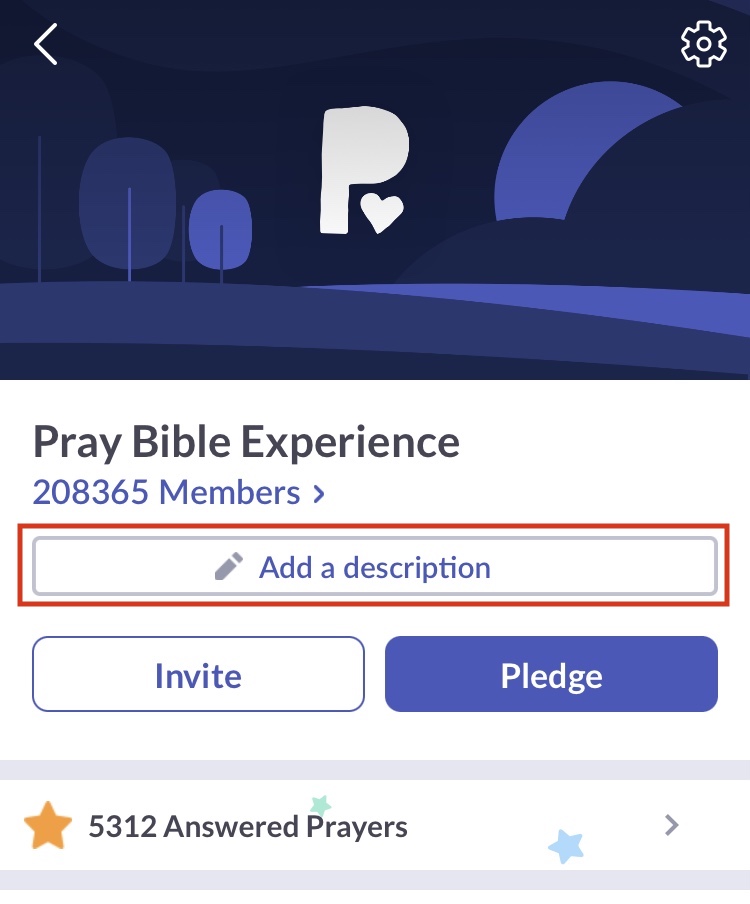
You can also add/edit the description when filling in the rest of the information, as shown in the steps below.
Filling all the information
Follow these steps to get access to all the editable information in your community:
Option 1
If your community is empty, you will be prompted to add information when you access it.
- Go to the relevant community.
- Tap on "Add information" and fill all the relevant fields.

Option 2
- Go to the relevant community.
- Tap on the "Details" button the community feed to go to the community profile.
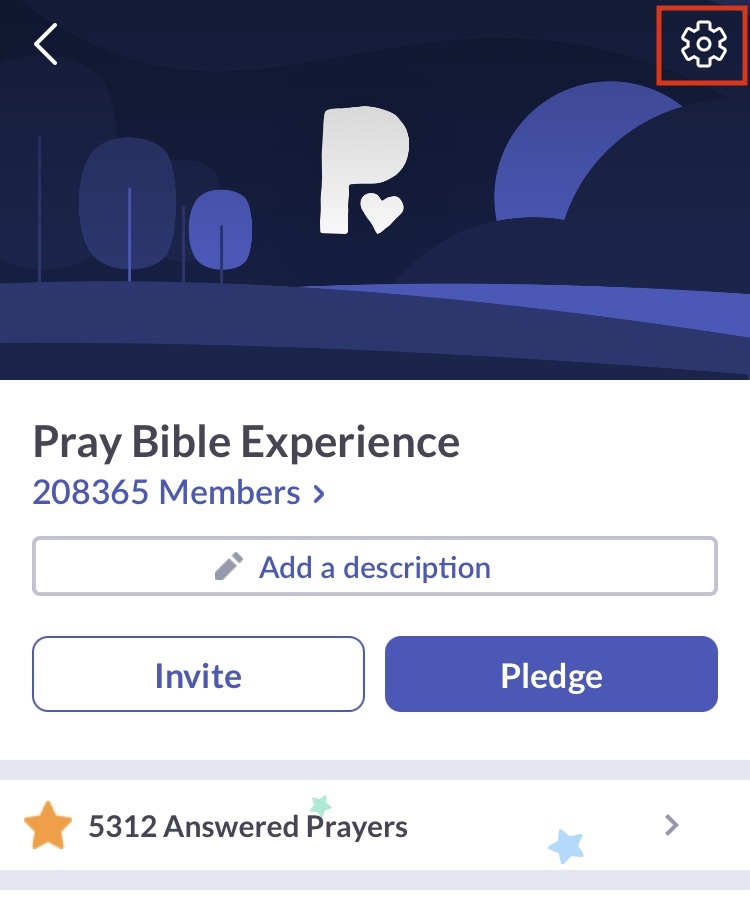
- Then tap on the gear icon at the top to access all the relevant fields
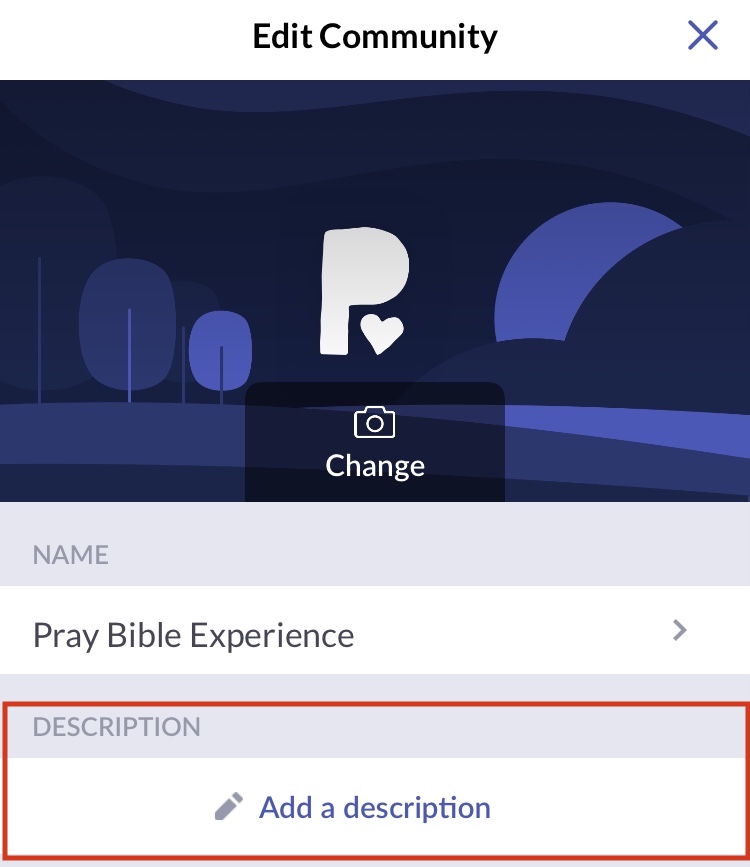
- Fill all the information you want your members to see, and scroll down to access more fields.
What information can you add and edit?
You can add and edit the following information:
- Name
- Description
- Address
- Phone number
- Service times
Note: any changes will be immediately visible to all members of your community.