How to Upload Your Podcast to Spotify
Updated Aug 23, 2024
Step 1: Ensure you have a valid “Owner Email” saved in Pray Studio that you will be able to receive confirmation emails to. If you do not, add and save that now in Pray Studio. Spotify requires this to validate your ownership of the RSS feed.
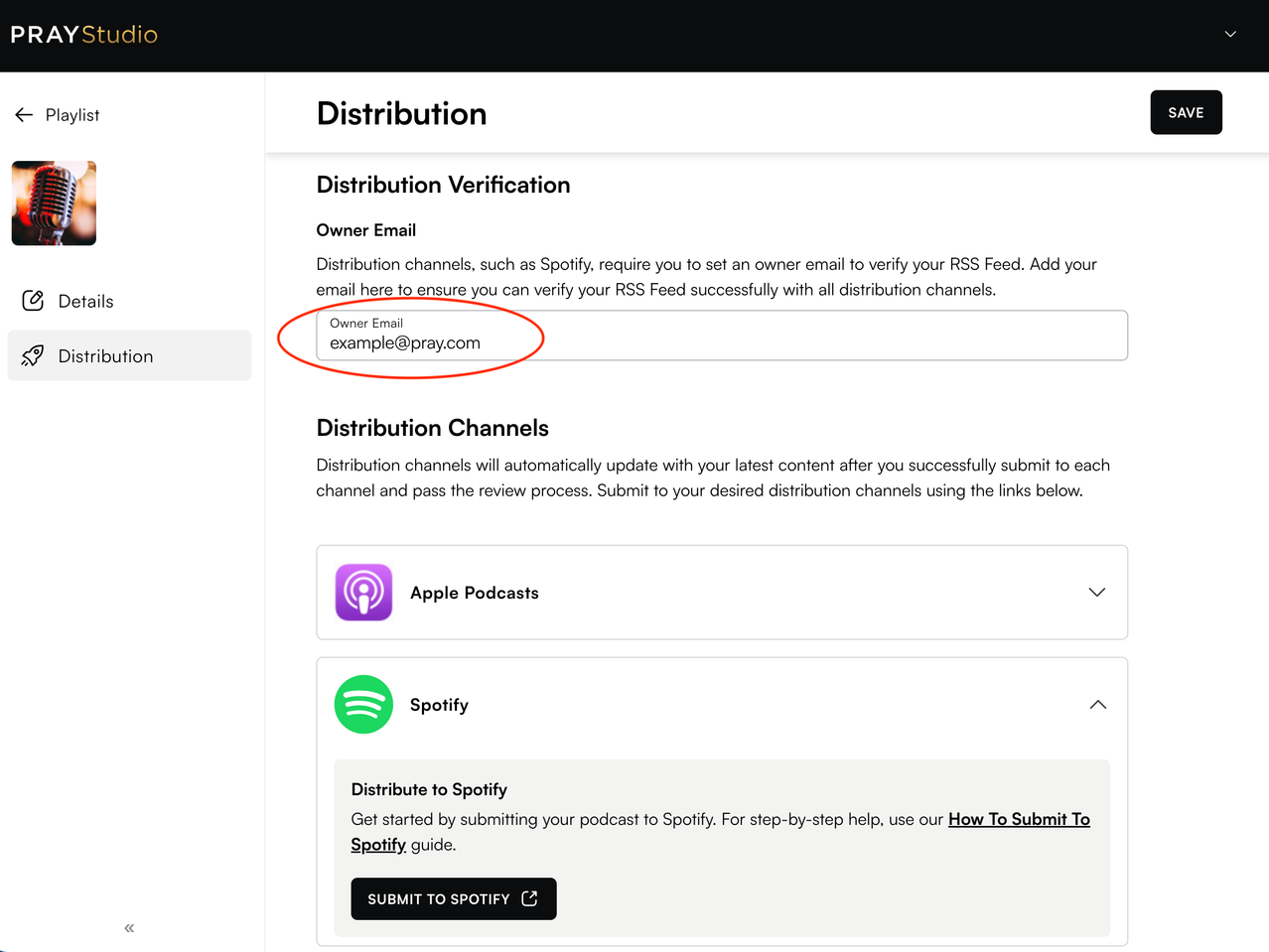
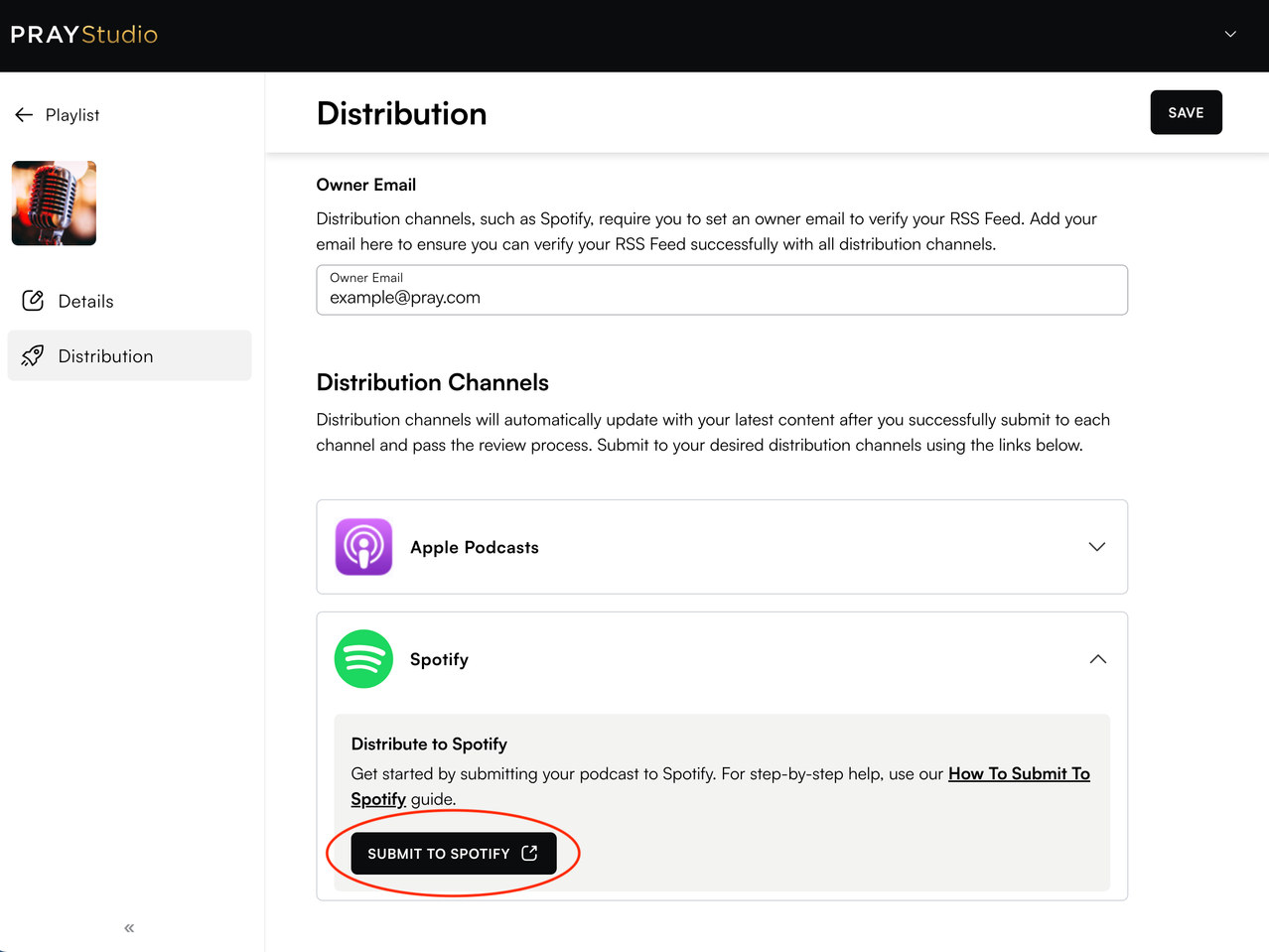
Step 2: Click on the “Submit to Spotify” button in Pray Studio to open up Spotify. Here you will need to log in or create a new account if you do not already have a Spotify account.
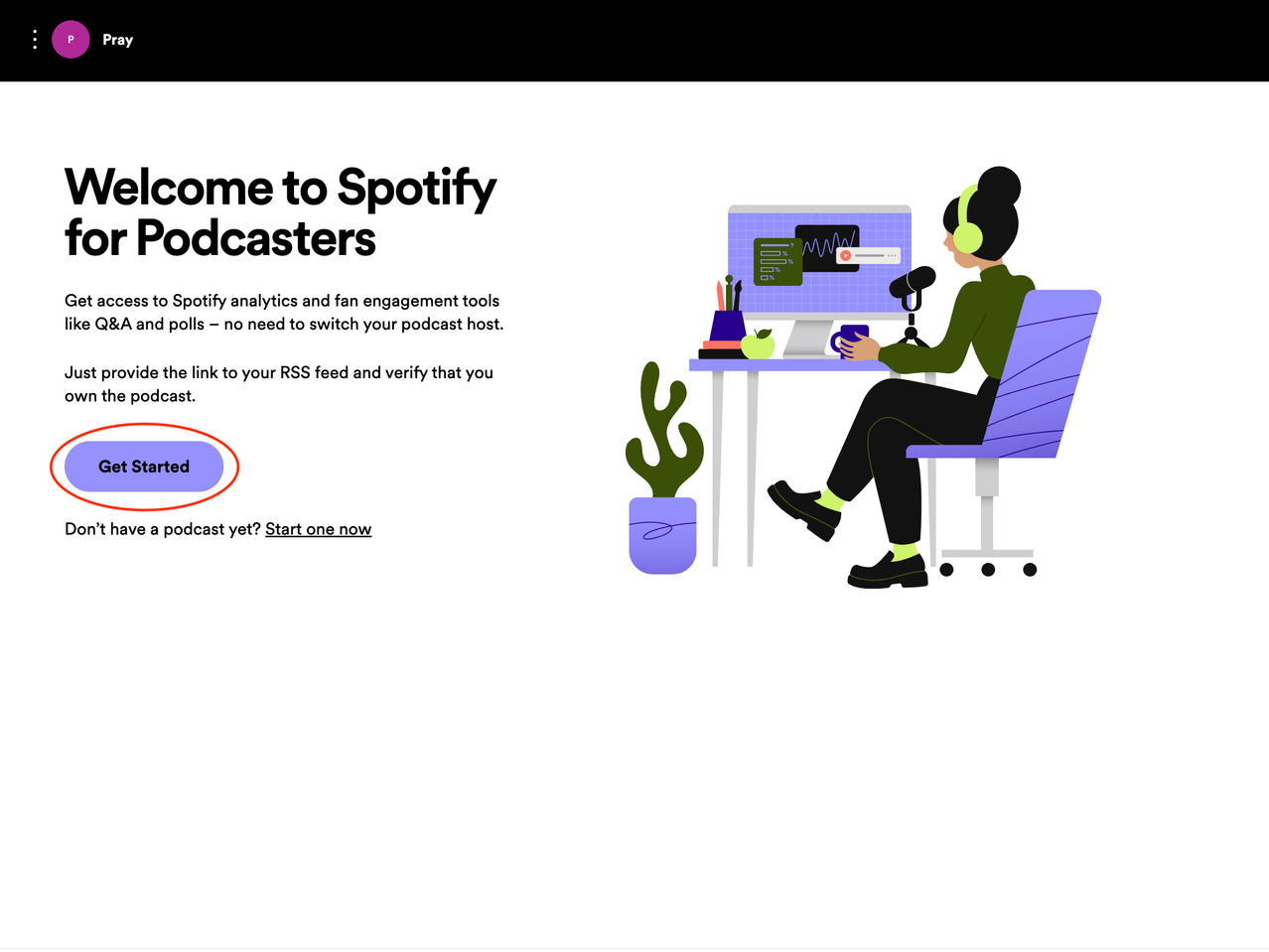
Step 3: Click the “Get Started” button.
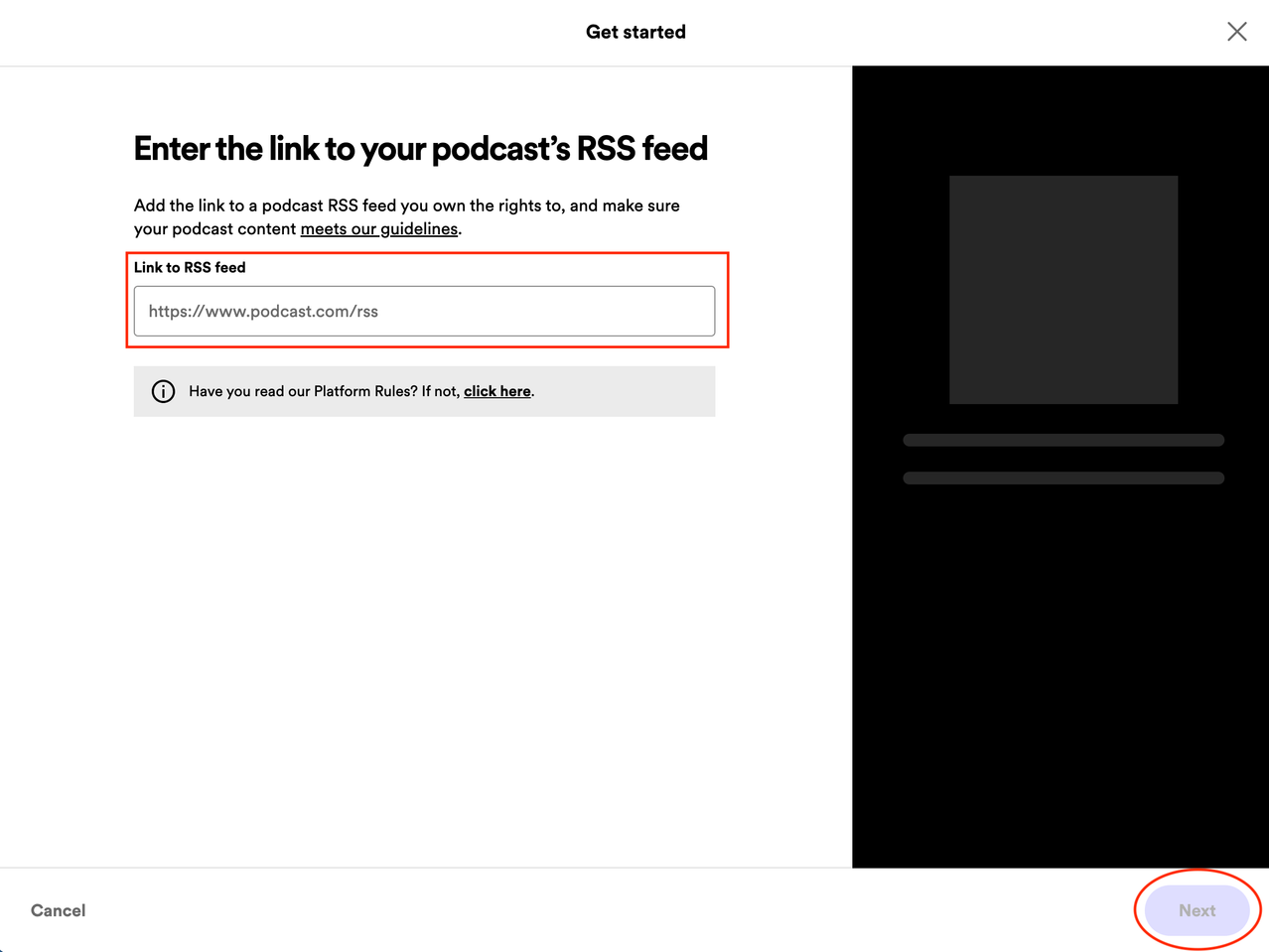
Step 4: Copy your RSS feed from Pray Studio and paste it into the “Link to RSS feed” box. Once you have pasted in the RSS feed URL, click the “Next” button at the bottom right of the screen.
Step 5: Spotify requires that you verify you own the RSS feed by sending a verification number to the Owner Email you previously set up in Pray Studio. Trigger the verification email by clicking “Send code”.
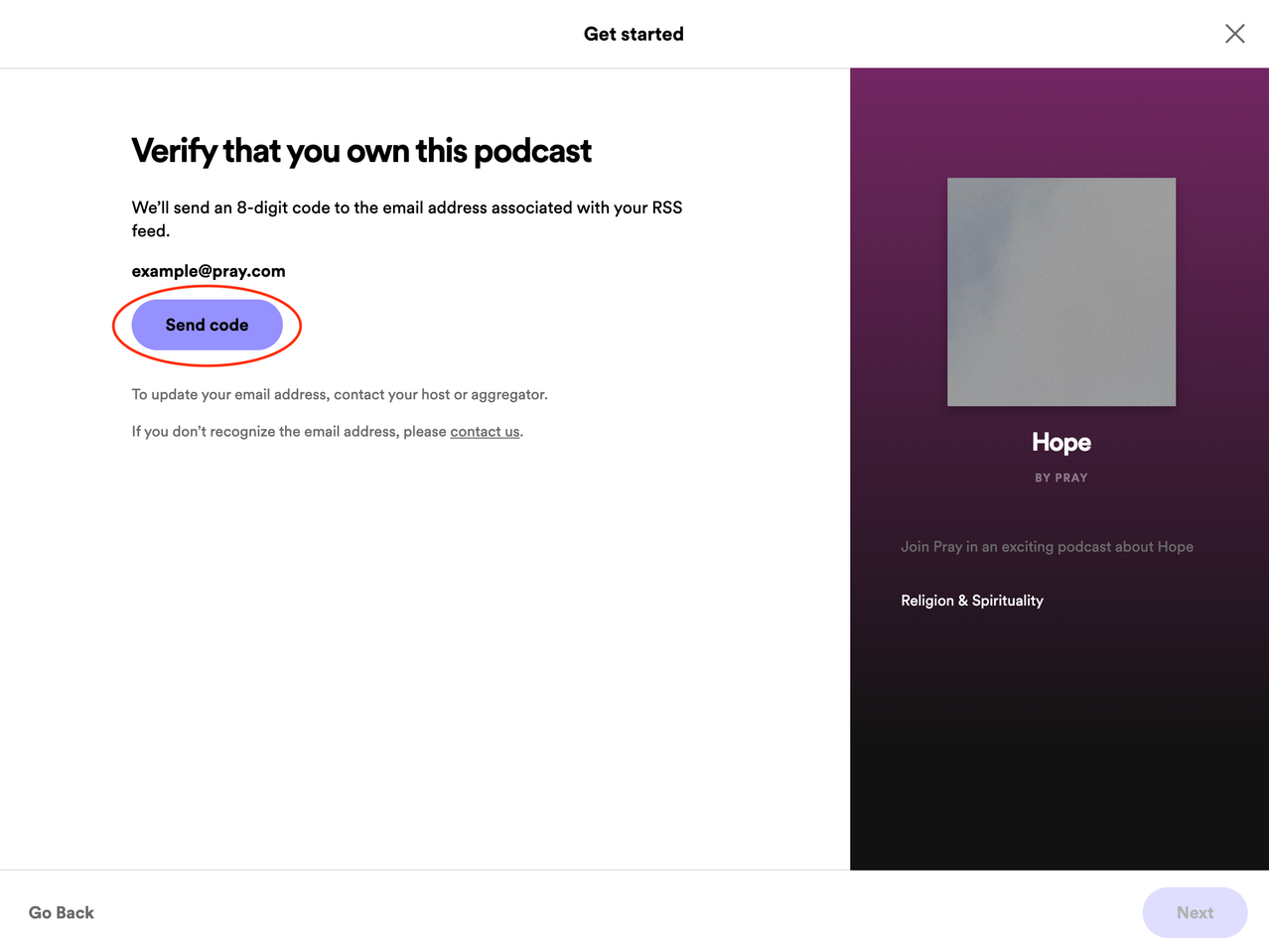
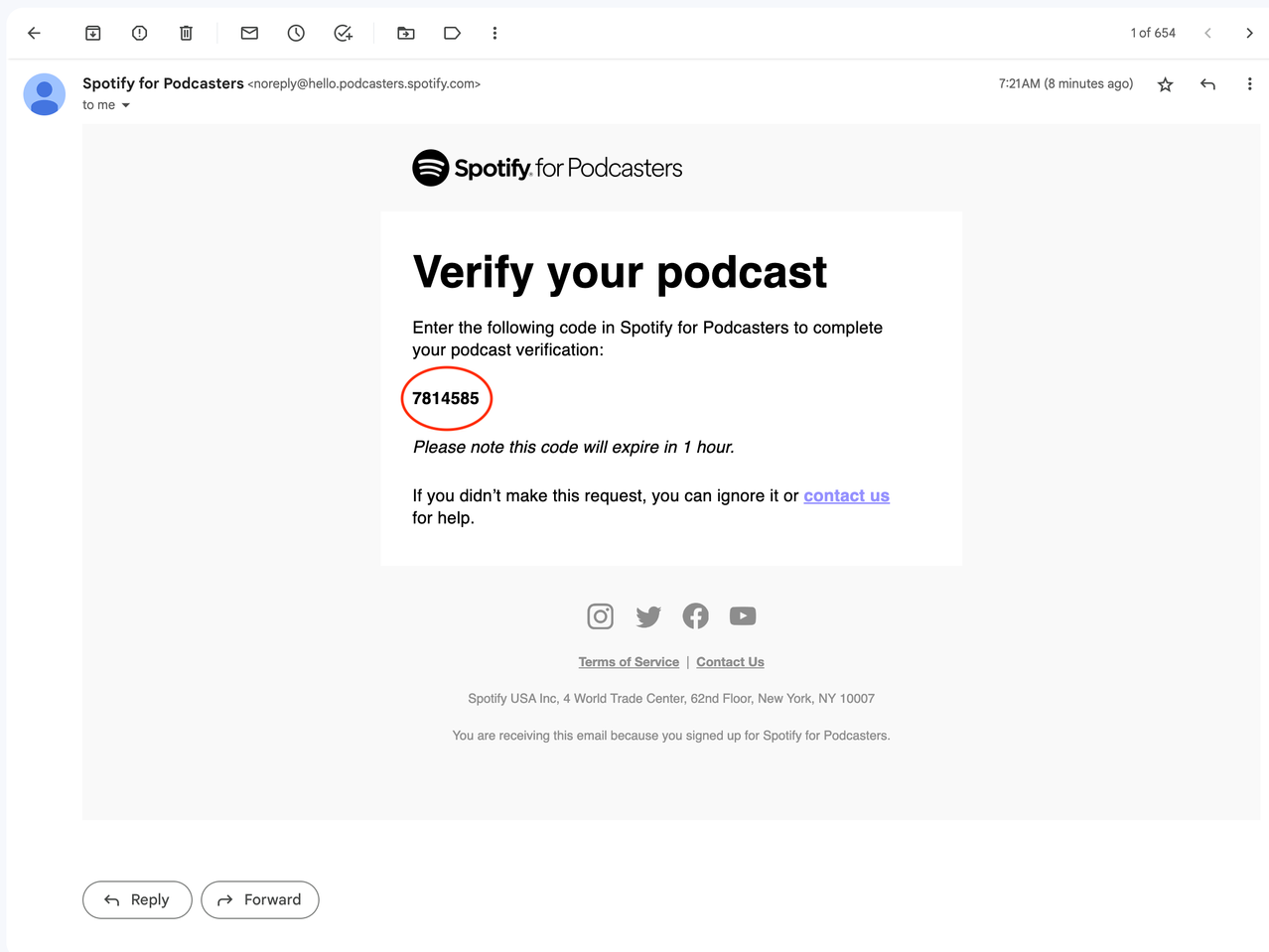
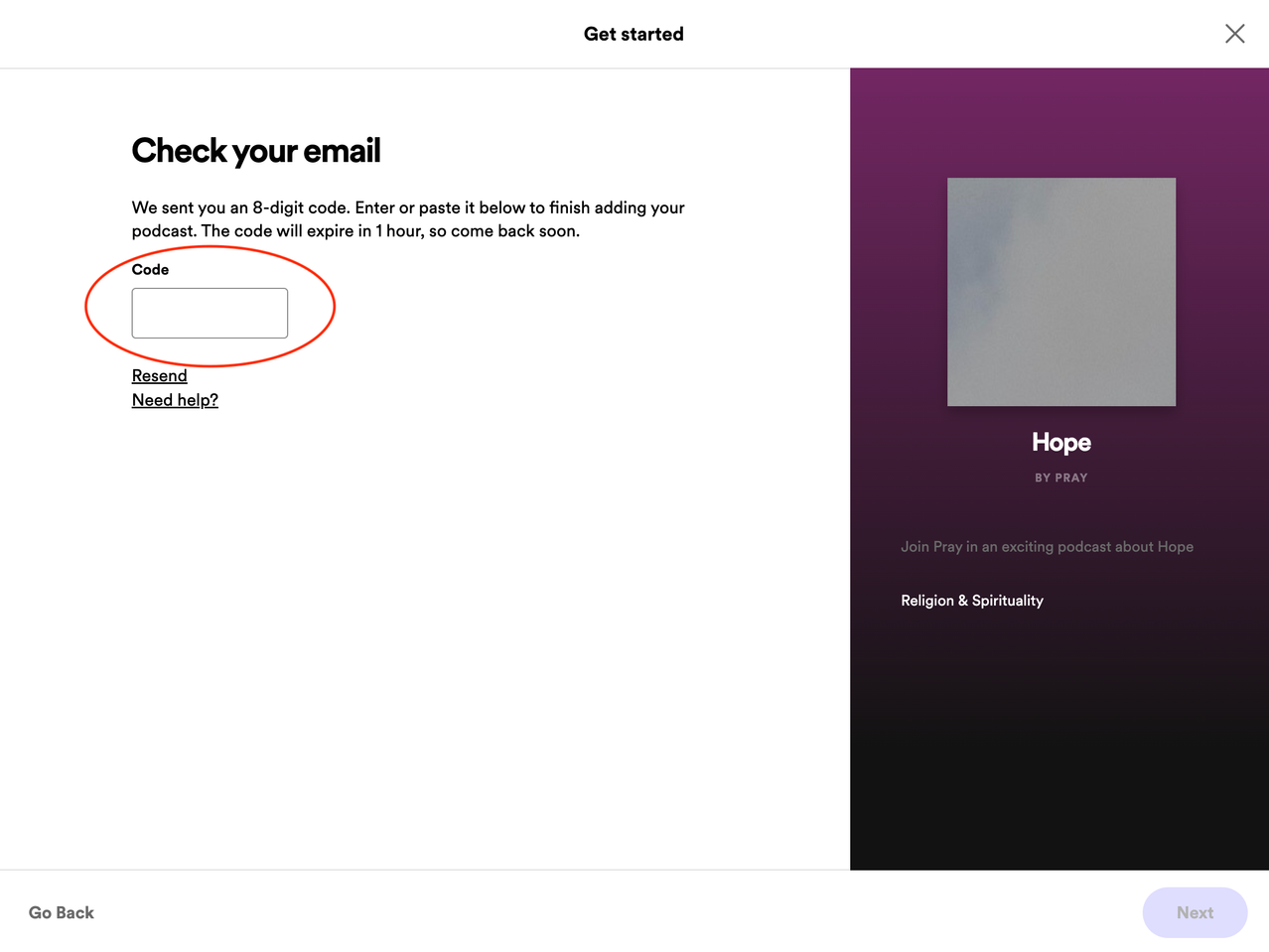
Step 6: Check your email and you should see a new message from Spotify. Copy the verification code that you see in your email, then paste the code in the code field in Spotify and click “Next”.
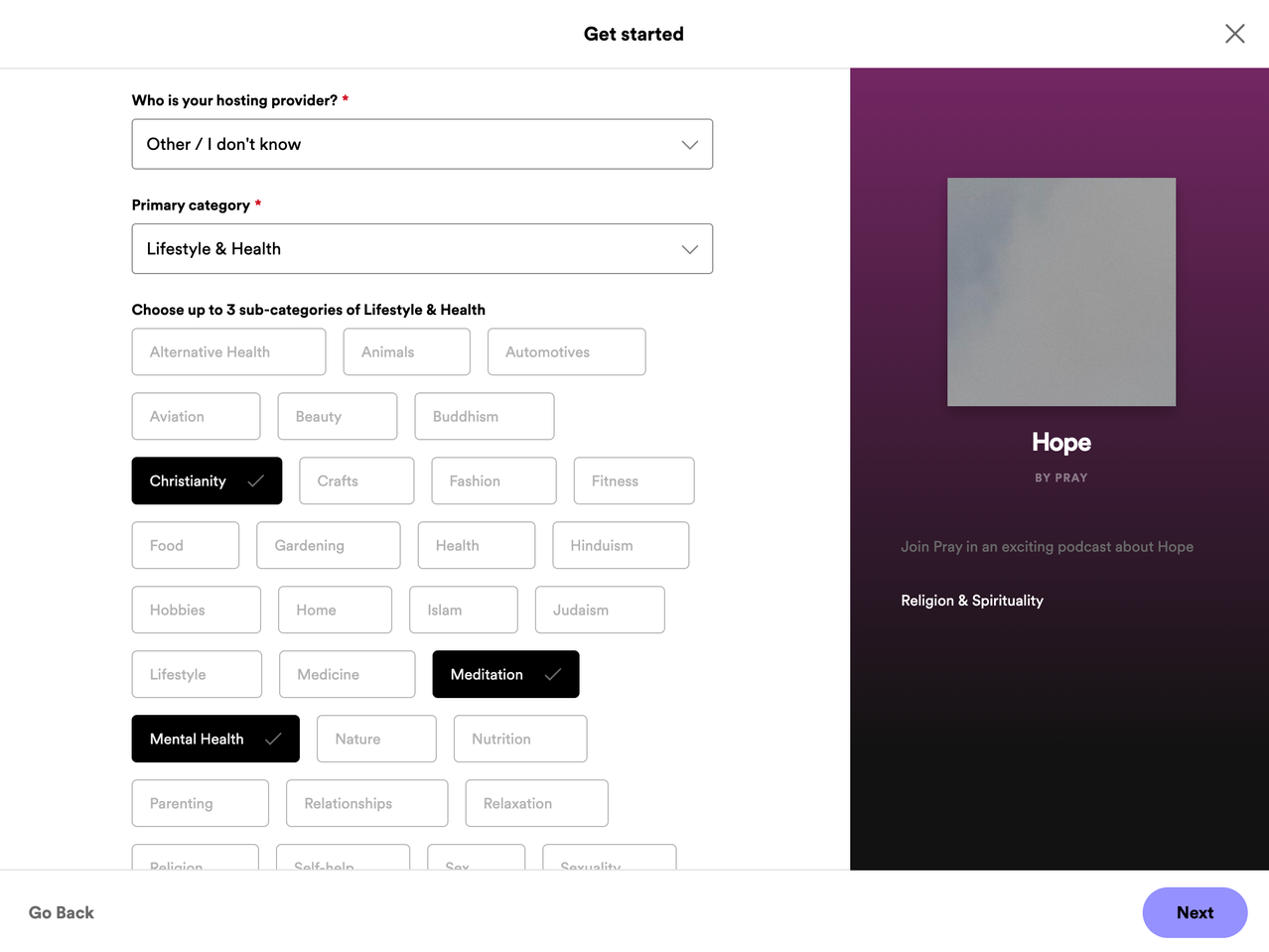
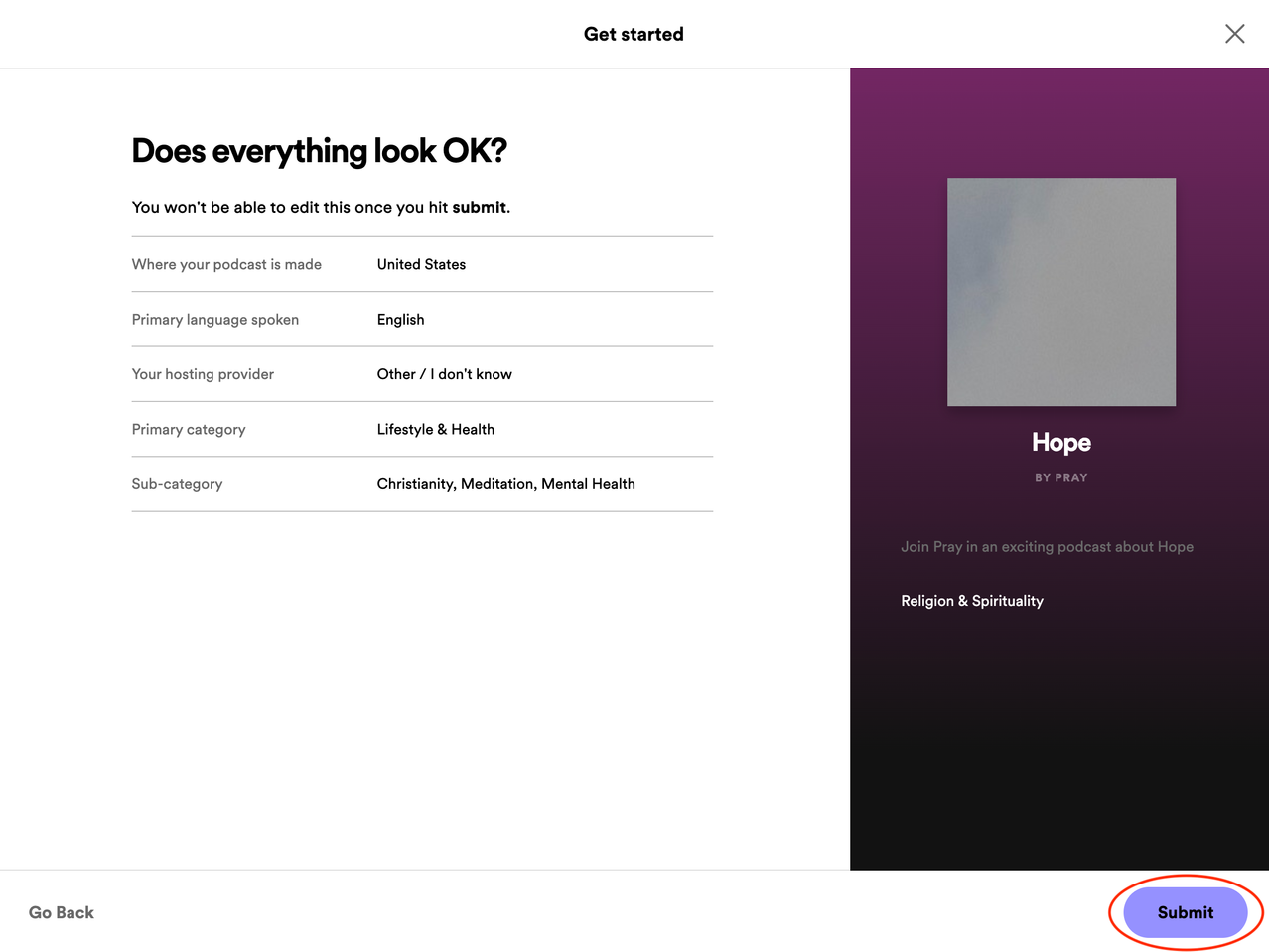
Step 7: Spotify will ask you to answer a few questions about your podcast. Select your choices, then click “Next”. Note, we recommend you choose “Other / I don’t know” for “Who is your hosting provider?” and “Lifestyle and Health” for “Primary Category”.
Step 8: After you have answered all the questions, review your choices and click “Submit”.
Step 9: Now that your podcast is submitted to Spotify, it will be live in Spotify within a few hours. Any changes you make in Pray Studio will automatically be updated in Spotify. This includes adding and removing new podcast episodes. Congratulations!